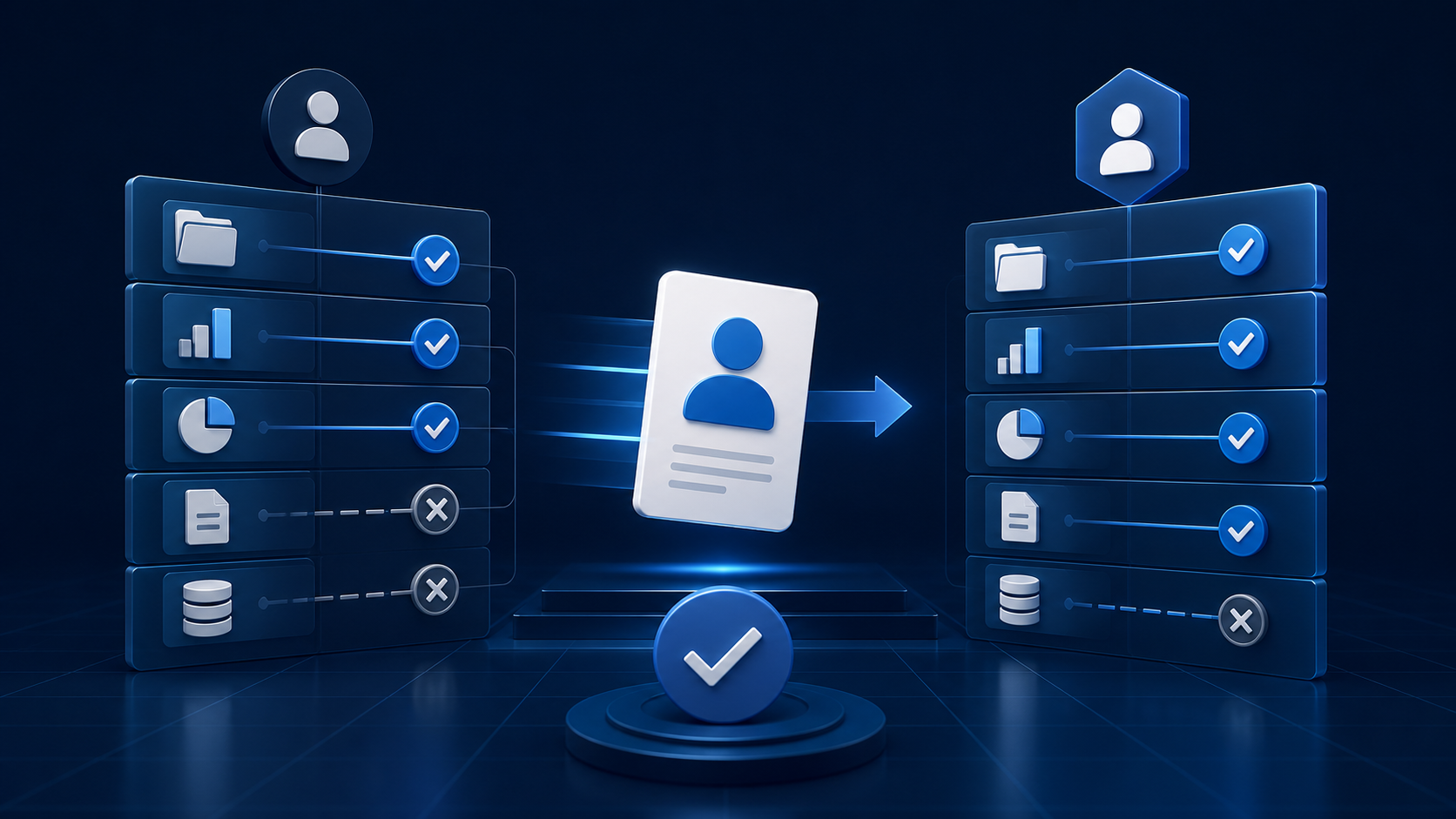
An internal job move can be deceptively simple. The employee keeps the same Salesforce user, so it is tempting to add the access needed for the new role and move on. Over time, that approach leaves people carrying permissions, queues and record visibility from several previous jobs.
A better role-change process is short, repeatable and based on the work the person will actually do. Salesforce provides layered controls for object, field and record access, and its User Access Summary brings many assignments into one place. The product behaviours below come from current Salesforce Help and Trailhead guidance; the review sequence and operating recommendations are the Ostrelis view.
1. Write down the new job in Salesforce terms
For managers: tell the admin what the person must do, not which profile you think they need. Useful requirements sound like: "update opportunities for the North region", "approve discounts up to the team threshold" or "work cases in the renewals queue".
For admins: translate those tasks into apps, objects, fields, record types, records and system capabilities. Also ask what the person must stop doing. A role-change request that lists additions only is incomplete.
Quick action: capture three real tasks for the new job and three responsibilities that ended. Use these as the acceptance criteria for the change.
2. Review the access the user has today
For admins: open the user in Setup and select View Summary. Salesforce says User Access Summary consolidates key user details, permissions and tabs. It can also show which profile, permission set or permission set group grants a particular permission through Access Granted By.
This matters because the visible symptom and the source are different things. Removing one permission set will not reduce access if the same permission also comes from the profile or another group. Salesforce also notes that some access features are not listed in the summary, so treat it as a strong starting point rather than the whole investigation.
Quick action: record the source of each important permission before changing assignments, and refresh the summary if a recent update is not yet shown.
3. Prefer maintained permission bundles over personal exceptions
For admins: Salesforce recommends using profiles for default settings and permission sets or permission set groups to grant additional object, user and field permissions. Permission set groups bundle permission sets around job personas, and changes to an included permission set flow into the groups that use it.
If the new role already has an agreed access bundle, assign that rather than reconstructing the role with several one-off permissions. Remove assignments that belonged only to the old job. Where temporary extra access has a genuine end date, use assignment expiration where the feature and licence support it instead of relying on somebody to remember later.
Quick action: compare the user with a well-established colleague doing the same work, but investigate differences rather than copying every assignment blindly.
4. Check record visibility as a separate layer
For admins and managers: being able to open an object does not determine which individual records a person can see. Salesforce record access can come from organisation-wide defaults, role hierarchy, sharing rules, teams and manual sharing. The correct design depends on the organisation's model.
A move between territories, departments or management levels can therefore require more than a permission change. Test the records the user should see and examples they should no longer see. Be particularly careful with managers whose position in the role hierarchy changes, because that can alter visibility across many records.
Quick action: choose two allowed and two disallowed record examples for the new role and include them in testing.
5. Clean up groups, queues and team memberships
For admins: User Access Summary can display and manage assigned public groups and queues. These memberships often drive shared list views, folder access, sharing rules or work routing, so an outdated membership can matter even when the user's headline permissions look correct.
Review public groups, queues, account teams, opportunity teams and case teams relevant to your setup. Remove memberships tied to the old responsibilities, add the new ones deliberately and confirm who will take over any work left in the former queue.
For managers: decide whether existing records stay with the employee, move to their replacement or return to a team queue. Access and ownership are related, but they are not the same decision.
Quick action: include a named owner for outstanding work in the role-change request rather than leaving reassignment to the admin to infer.
6. Look for ownership and operational dependencies
For admins: a user can remain operationally important beyond their direct access. Check whether they own reports, dashboards, scheduled subscriptions, records, approval responsibilities or automation-related connections used by your organisation. The exact dependency list varies by implementation.
Do not change a dashboard running user, integration identity or automation owner without understanding the effect and testing it. The practical goal is to separate personal work from service-like dependencies that should have stable, documented ownership.
Quick action: search your change checklist for anything named after an individual. Decide whether it should transfer, remain, or be replaced by an appropriate managed arrangement.
7. Test the new role and schedule a follow-up
For users: complete the three real tasks agreed at the start. Check the app navigation, record access, editable fields, queues and approvals involved. Report both missing access and access that no longer seems relevant.
For admins: verify with realistic records and, where your governance permits, use supported access-troubleshooting tools rather than asking for the user's password. Record what changed, who approved it and any temporary assignments. A short follow-up after the person has worked in the role catches practical gaps that a static checklist can miss.
Quick action: book a 15-minute review after one or two weeks and close the request only when temporary fixes have been resolved properly.
Make internal moves part of access housekeeping
A role change is not just an onboarding task with a familiar username. It is a useful point to remove accumulated access, clarify ownership and make the new working experience simpler. Start from real tasks, review every access layer and verify the outcome with the employee and manager.
Ostrelis can help make Salesforce user management and everyday changes more reliable without turning each request into a major project. Explore our Salesforce administration service, managed Salesforce support and Salesforce health checks.
Need help getting prepared?
Ostrelis can help assess whether this change affects your Salesforce environment, identify dependencies and plan the work needed to prepare safely.
Talk to a Salesforce expertSources
- View a User's Access Summary — Salesforce Help (Current product documentation, accessed 13 August 2026)
- Set Up Your Users' Object, User, and Field Permissions — Salesforce Help (Current product documentation, accessed 13 August 2026)
- Permission Set Groups — Salesforce Help (Current product documentation, accessed 13 August 2026)
- Manage Users and Data Access — Salesforce Help (Current product documentation, accessed 13 August 2026)
- Optimize Org Access Control: User Management Guide — Salesforce Trailhead (Current Trailhead guidance, accessed 13 August 2026)