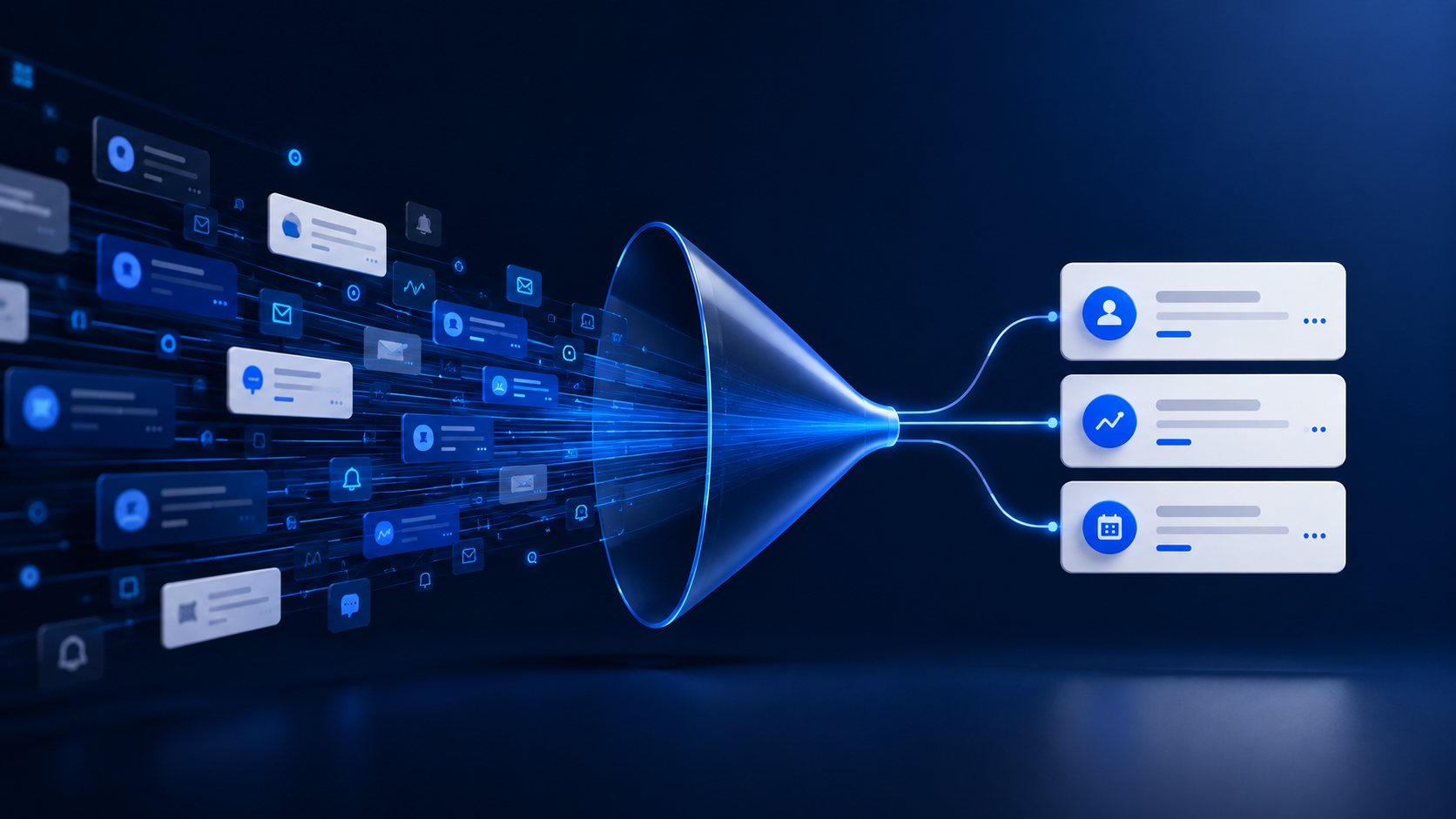
A notification should help somebody notice and act on something important. When every record update, comment, task and automation competes for attention, users learn to ignore the bell, mute mobile alerts or create inbox rules that hide everything.
The answer is not to switch off notifications indiscriminately. Salesforce provides organisation-level delivery controls, user-level Chatter preferences, mobile settings and custom notifications. The capabilities below are confirmed in current Salesforce guidance; the order and review approach are practical Ostrelis recommendations. Start with the alerts that generate the most complaints or the least action.
1. Decide what deserves an interruption
For managers and admins: classify notification use cases before touching Setup. An event deserves an immediate alert when it is time-sensitive, relevant to a specific recipient and requires a clear response. A routine status change may belong in a list view or report instead.
Write down the event, recipient, required action and acceptable response time. If the team cannot complete those four fields, the alert is probably not well defined. This also exposes notifications sent to broad groups simply because choosing a precise owner was harder.
Quick action: review the ten most common alerts with one representative user and mark each as immediate, digest, dashboard or unnecessary.
2. Review delivery channels by notification type
For admins: Salesforce Notification Delivery Settings lets authorised administrators choose channels for the notification types available in their organisation. Depending on the notification and connected products, those channels can include desktop, mobile apps and Slack.
Do not assume every useful desktop notification should also reach a phone. Choose channels according to the job. A high-priority case reassignment may justify mobile delivery; a routine collaboration update may be adequate in the desktop notification tray. Salesforce notes that mobile in-app and push delivery also depend on organisation, app and device settings.
Quick action: export or record the current channel choices for each visible notification type, then flag anything delivered everywhere without a documented reason.
3. Help users trim Chatter email
For users: Chatter email preferences can control which activities generate email and how frequently group updates arrive. Salesforce itself advises users to be selective and to use suitable daily or weekly digests.
Keep direct messages, mentions or genuinely important group activity if they support your work. Consider turning down follower, like and low-value comment emails that duplicate information already visible in Salesforce. Preferences are personal, so give users a short guide rather than imposing one pattern on every role.
Quick action: spend five minutes in personal Chatter email settings and replace frequent emails from one busy group with a digest.
4. Treat mobile push as a high-attention channel
For admins and users: mobile push can appear outside the Salesforce app and may display on a lock screen. Salesforce provides an organisation option to show minimal content, while users also control push preferences in the app and at device level.
Reserve push for events that remain valuable away from a desk. Review whether the notification exposes customer or operational detail on a locked device, and use minimal content when that risk outweighs the convenience. Remember that an administrator enabling a mobile channel does not guarantee delivery if the app or device has notifications disabled.
Quick action: test one important mobile notification on a representative managed device, including what appears while the device is locked.
5. Make every custom notification earn its place
For admins: Salesforce supports custom notifications sent from Flow. They can appear in the notification bell and can be configured for desktop, mobile or both. The Flow action accepts a title, body, recipients and a target that opens when the user selects the notification.
Use those fields to make the next step obvious. Name the event, explain why the recipient is involved and link to the record where action happens. Keep recipient logic precise and avoid notifying the person who triggered an event unless they genuinely need confirmation.
Quick action: open one notification-producing Flow and check its entry conditions, recipient collection, plain-language message and target record.
6. Remove duplicate alerts
For admins and managers: the same event can sometimes produce a bell notification, mobile push, Flow email, Chatter mention and an external messaging alert. Individually reasonable automations can become noise when combined.
Trace one business event from start to finish. Include record-triggered Flows, approval processes, assignment notifications, scheduled automation and connected apps. Then choose a primary channel and retain a second only when it serves a different purpose or audience. This is Ostrelis operational guidance rather than a Salesforce platform rule.
Quick action: ask users to forward examples of duplicated alerts for one week, then map each example back to its source before disabling anything.
7. Review whether notifications still prompt action
For managers: notification design is not finished when automation is activated. Teams change, queues change and an alert that once mattered can become background noise. A short review can be more useful than adding another reminder.
Ask a small sample of users which alerts they act on, which they defer and which they ignore. Combine that feedback with support tickets and the automation inventory. Retire obsolete alerts, narrow recipients and record an owner for anything that remains. Review again after a role or process change.
Quick action: add notification usefulness to a quarterly Salesforce service review and give every custom notification a named business owner.
Keep the signal, reduce the noise
Good notifications are not simply fewer notifications. They reach the right person, through the right channel, at a useful moment, with a clear next step. A focused review of one noisy process can improve attention without becoming a major Salesforce project.
Ostrelis can help teams simplify everyday Salesforce administration, automation and user experience. Explore our Salesforce administration service, managed Salesforce support and Salesforce health checks.
Need help getting prepared?
Ostrelis can help assess whether this change affects your Salesforce environment, identify dependencies and plan the work needed to prepare safely.
Talk to a Salesforce expertSources
- Manage Notification Delivery Settings — Salesforce Help (Current Salesforce Help guidance, accessed 3 September 2026)
- Salesforce Mobile App Notification Types — Salesforce Help (Current Salesforce Help guidance, accessed 3 September 2026)
- Send a Custom Notification with a Flow — Salesforce Help (Current Salesforce Help guidance, accessed 3 September 2026)
- Guidelines for Managing Your Personal Chatter Email Settings — Salesforce Help (Current Salesforce Help guidance, accessed 3 September 2026)